You’ve written and approved your information security protocol. Now your team needs to read it and, above all, remember it. A game would help, but putting one together takes time.
You have to figure out the mechanics, write the questions, come up with plausible wrong answers, and lay everything out. You often also need to find time in the design team’s schedule, wait for someone to build it, and coordinate reviews with the subject-matter team. That’s a lot of work for a ten-minute refresher.
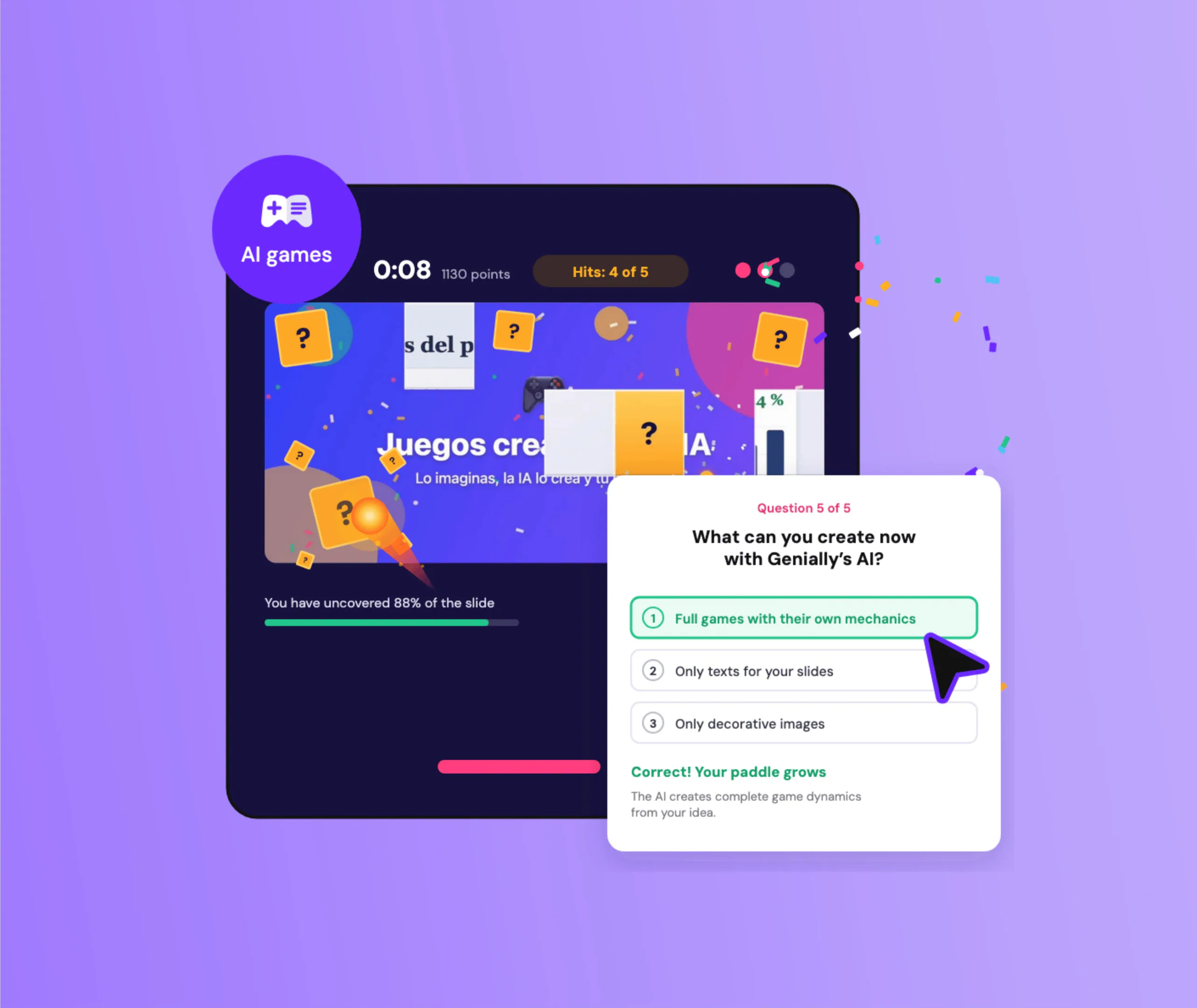
Now you can create games with AI in minutes, with no coding. Pick a game, describe your topic in a text box, and get a first draft with the questions, answers, and mechanics already set up. You review it and decide when it’s ready for your team.
Key takeaways
- You can create games with AI from a template in the “AI games” category and a description of your topic. The AI generates the title, instructions, questions, and answers.
- The process has four steps: choose a template, describe the topic, review what the AI generates, and fine-tune it in the editor. Reviewing it, including its accessibility, is the step you shouldn’t skip.
- It works well for short reinforcement activities: onboarding, reviewing a policy before an internal certification, or adding a challenge midway through a training session or meeting.
- Each game is a single-page creation. It doesn’t replace a course or a branching scenario.
What you can do with AI games
AI games are a Genially feature that generates a game from a template and the topic you describe. You get a first draft with a title, instructions, questions, and answers based on your content. You provide the topic and decide what works, then edit it in Genially before sharing.
One thing before you start: the result is a single-page game with one component. It works well for review or to energize a session.
Here’s what a challenge game looks like:
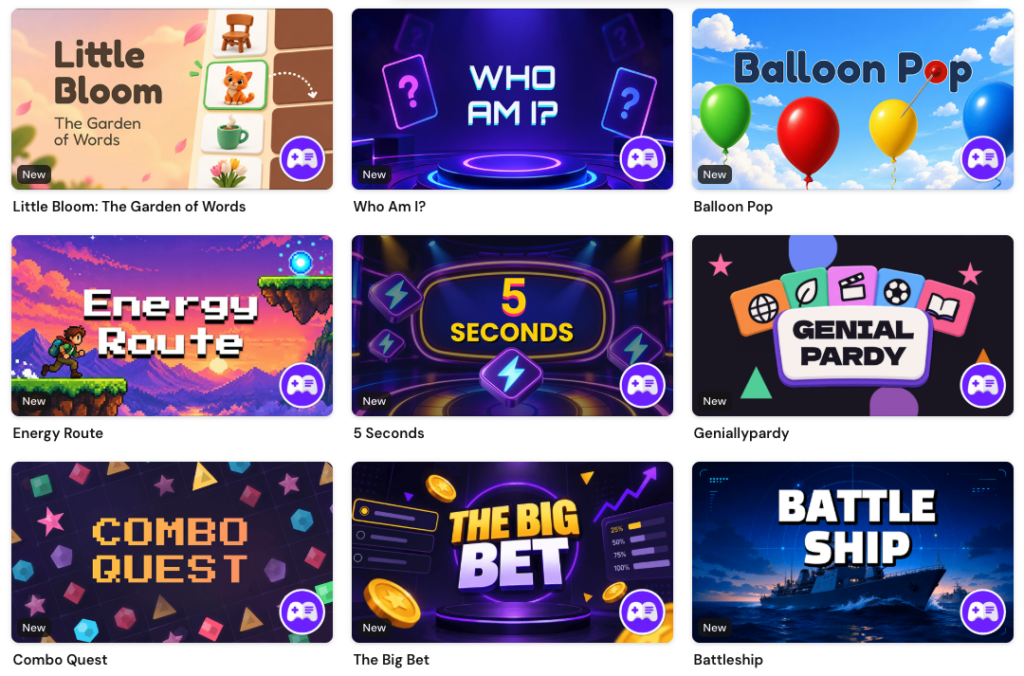
TEMPLATES
AI game templates
Create AI-powered games in seconds: pick a template, describe your topic and Genially generates the content for you.
How to create games with AI, step by step
Creating games with AI in Genially takes four steps. Choose a template from the “AI games” category, describe the topic, review what the AI generates, and fine-tune the result in the editor. The first two go quickly. The third, reviewing, needs more attention.
This video shows the feature in action:
1. Choose a template from the “AI games” category
You can get started in two places. The first is the “AI games” category in the template section, with games like Defend the Castle, Hot Potato, or Battleship. The second is Genially AI Builder, where you’ll find the “Create a game with AI” option.
Before you focus on the design, think about what you want players to do. Preview each option with that question in mind.
If you’re reviewing a policy or preparing for an internal certification, look for a question-based or timed game: it makes players recall what they’ve learned. To introduce a launch to the sales team, a challenge or guessing game builds more anticipation.
2. Describe the topic you want to cover
In the text box, enter the topic or content for the game. For example: “information security protocol for new hires.”
That’s enough to get started. For a more tailored result, add three more details:
- Audience: who’s going to play. Sales and technical support teams need different examples.
- Level: whether this is an introduction or a review before an assessment.
- What they need to do: the behavior you want to encourage, such as recognizing a phishing email and knowing who to notify.
3. Review what the AI generated before publishing
The AI gives you an editable starting point. You’re still responsible for the content: accuracy, tone, rights, and accessibility. Before sharing it, go through this checklist:
- Answers: each question has only one correct answer, and none of the incorrect options could also be considered correct.
- Terminology: the names of processes, tools, and departments match those used at your company.
- Up to date: the content matches the current version of the policy or process.
- Instructions: someone without prior context understands what to do without asking you.
- Accessibility: navigate through the game using a keyboard and screen reader. To learn what the editor supports, see Genially and accessibility.
4. Make changes in the simplified editor or switch to the full editor
For quick changes, you have a simplified version of the editor. Use its sidebar to change colors, fonts, and content without touching the canvas.
In the full editor, you can make changes manually or use “Edit with AI” to request changes to what you already have. The game is responsive from the start, so you don’t need to create a separate mobile version.
Want to see what else the editor’s AI can do for your training, from images to voiceovers? We cover it in AI for content creation.
Where AI games fit into training, and where they don’t
AI games fit into short reinforcement activities that support your training. They aren’t designed to create full courses or branching scenarios, because each game is a single-page creation with one component.
AI games work best in these three situations:
- Onboarding and internal training: turn a block of content into an interactive challenge without relying on the design team. If you already use gamification for business, these challenges work as short activities between sessions.
- Policies, processes, and internal certifications: use a quiz or timed game to review before the assessment, or a few weeks later to see what people remember. It’s a microlearning activity: one idea that takes only a few minutes.
- Webinars and internal sessions: add a quick challenge midway through the presentation to get the audience involved.
If the module needs conditional logic, variables, or a complex simulation, you need a specialized authoring tool. In that case, Genially can complement the authoring tool with a review game to go alongside the module.
AI games are available on the Master, Author, and Enterprise plans for businesses, and on the Expert, Genius, Edu 360, and Campus education plans. The feature uses AI credits: each game you generate or edit with AI uses credits.
If you already have a topic in mind for your next training, try it with that topic and judge the result for yourself.
Frequently asked questions
How are AI games different from regular game templates?
With a regular template, you replace all the text, questions, and answers manually. With AI games, that content is generated from your topic, leaving you to review and adjust it. The result is a single component on one page.
Who on my team can use AI games?
You need one of the plans that includes the feature (Master, Author, Enterprise, Expert, Genius, Edu 360, or Campus), available AI credits, and AI permissions enabled for your team. Guests don’t have access.
Are AI-generated games accessible?
Don’t assume so. The fact that Genially’s editor includes accessibility features doesn’t guarantee that an AI-generated creation is accessible. Before sharing the game, navigate through it using a keyboard and screen reader, then fix anything that doesn’t work in the editor.
Do AI-generated games work well on mobile?
Yes. Every game adapts to different devices without any extra setup, so your team can play on mobile without you creating another version.